
You don’t need a new stack of tools to AI traffic on your site, but you do need to adapt the one you have because the way AI-driven search behaves makes tracking fuzzier than it was when search engines returned 10 blue links.
In this guide, we discuss what customization your GA4 needs to attribute traffic to its correct sources and not call it all referral or direct when it’s actually coming from AI overviews and LLMs.
TL:DR
- You can track AI traffic in GA4 by creating a custom channel group. This allows you to separate visits from AI tools into their own acquisition channel instead of letting them sit inside generic referral traffic.
- Set the channel condition to “Source → matches regex.” Add a regex string that captures major AI domains.
- Move the AI channel above Referral in the channel order. GA4 assigns traffic top-to-bottom, so if Referral sits above your AI channel, those visits will still be categorized as referral traffic.
- Use the Traffic Acquisition report to view AI traffic. Switch the primary dimension to your AI Traffic Channel Group to see AI visits alongside channels like Organic Search, Paid Search, and Direct.
- Create a dedicated AI traffic report for deeper analysis. Filter the report by your AI channel group and use Session source to see which LLMs are sending traffic (ChatGPT vs Perplexity vs Gemini).
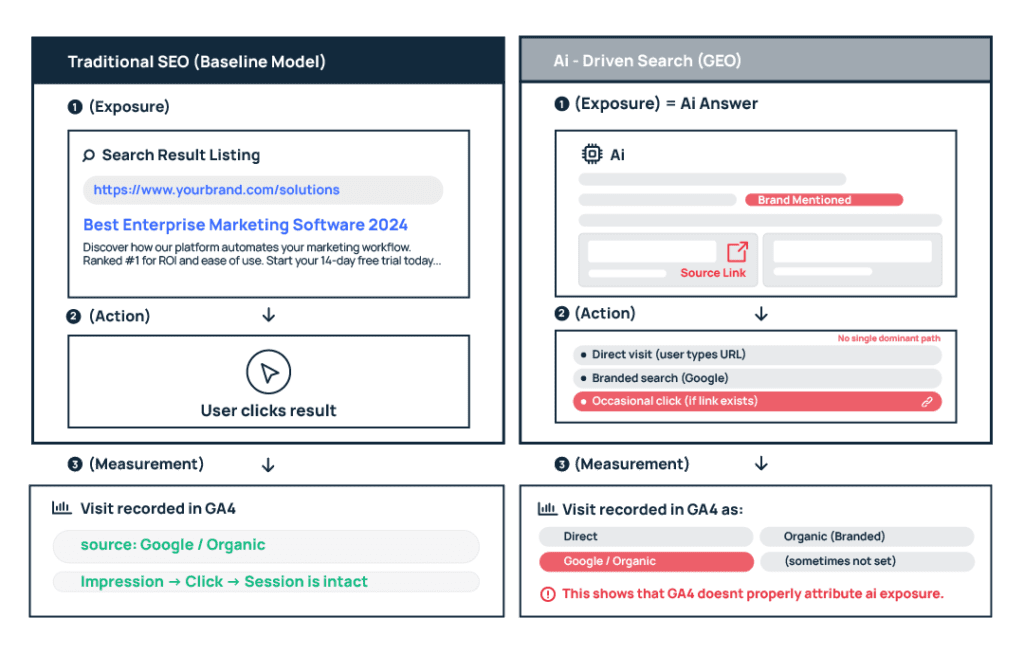
- Not all AI exposure will be measurable. Zero-click mentions and visits where referrer or UTM data gets stripped will still appear as Direct or “(not set).”
Not all AI traffic will be measurable, no matter what filters you apply in GA4
With AI sitting on top of every search interface now – from our traditional search engines like Google and Bing to LLMs like ChatGPT, Perplexity, Gemini, and Claude – your brand can appear in answers without a clickable URL attached. These are zero-click mentions. They influence awareness and perception, but they don’t generate measurable sessions.
Even when a link is clickable (you get cited along the mention), GA4 will only recognize the visit correctly if the referrer header or UTM parameters survive the journey. ChatGPT, for example, often appends utm_source=chatgpt.com when generating links. But if that parameter is stripped during redirects, lost in an in-app browser, or blocked by privacy settings, the same click may later appear as Direct or “(not set).”
There is currently no reliable way to recover traffic that loses this referrer/UTM data. Which is why what you see in GA4 will never be a complete view of the AI exposure your brand gets. Since we can’t do much about that, let’s focus on organizing what can be tracked and used for guiding your GEO strategy.
How to Create the Set-up You Need to Measure AI Traffic
Create a Custom Channel Group for AI
There are a few ways to isolate AI traffic in GA4. You can apply a filter directly in the Traffic Acquisition report, or build a one-off exploration. The problem with that is – filters reset, the character limit is restrictive, and every time you revisit the report, you have to rebuild the logic. As more AI domains emerge, that setup becomes harder to maintain.
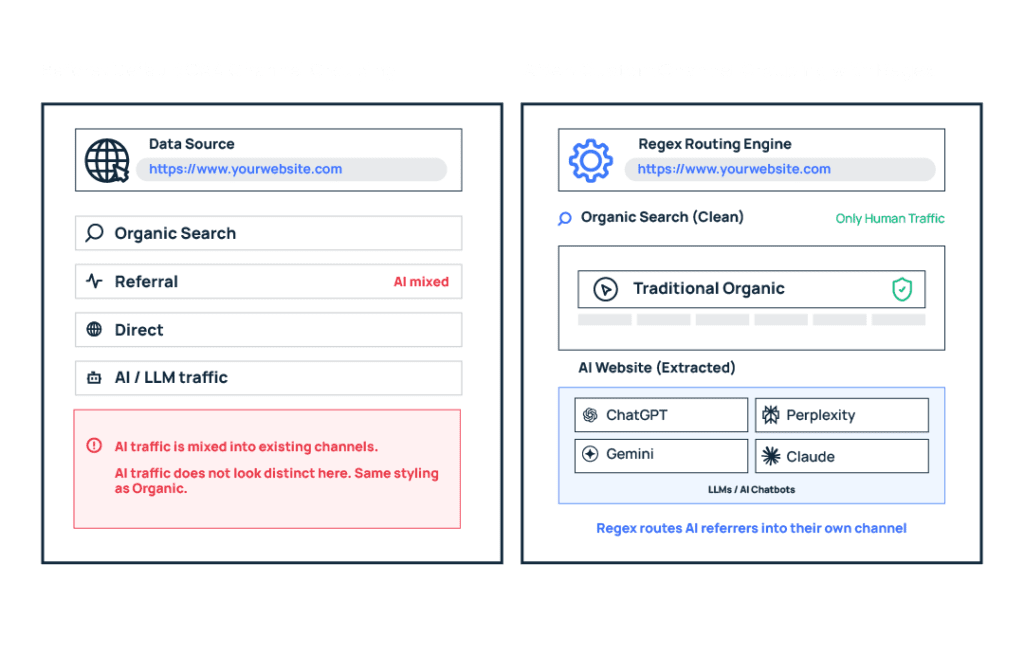
Custom channel groups solve this in a better way. Once you’ve configured them, they continuously classify incoming sessions based on your defined rules. It gives you a reusable, scalable way to treat AI as its own acquisition channel instead of burying it inside Referral.
Here’s how to do it:
Head into Admin → Channel groups.
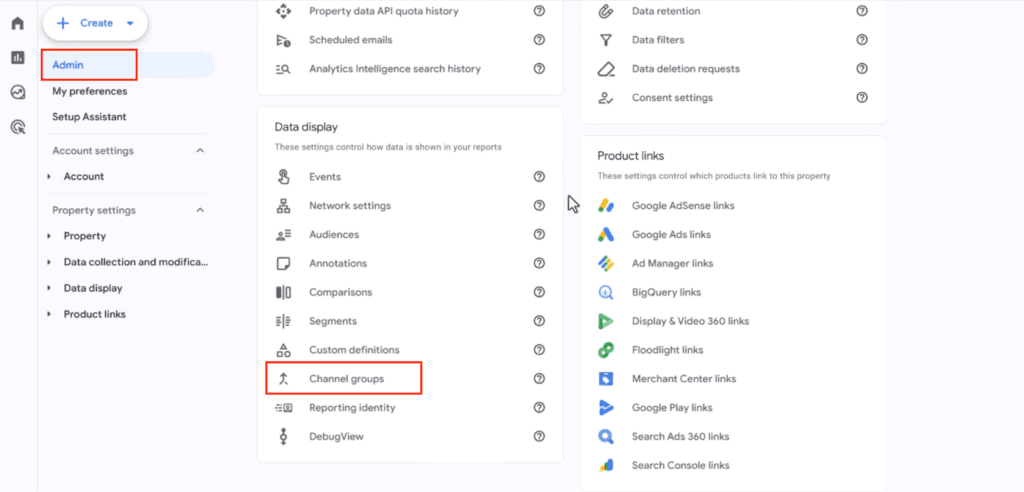
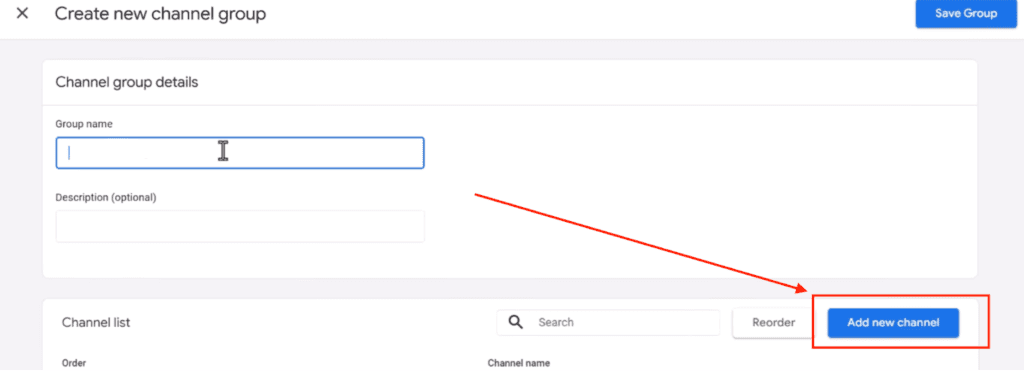
Create a new channel group and name the group AI traffic channel – whatever works for you. Then click “add new channel”.
But name the new channel something other than “ai traffic” because then if you want to search your reports, it will pull all rows with “ai” in their spelling, like “email” or “paid”. Whereas “LLMs” is unique, and when you look up “LLMs,” it will match only this channel.
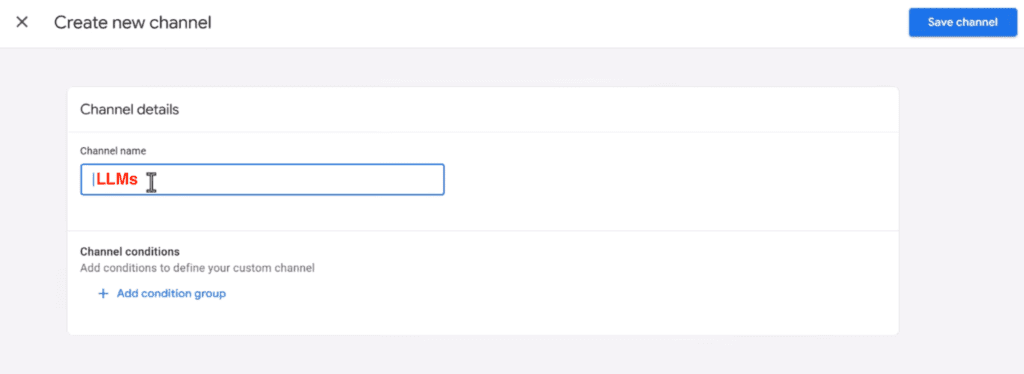
Next, add a condition group,
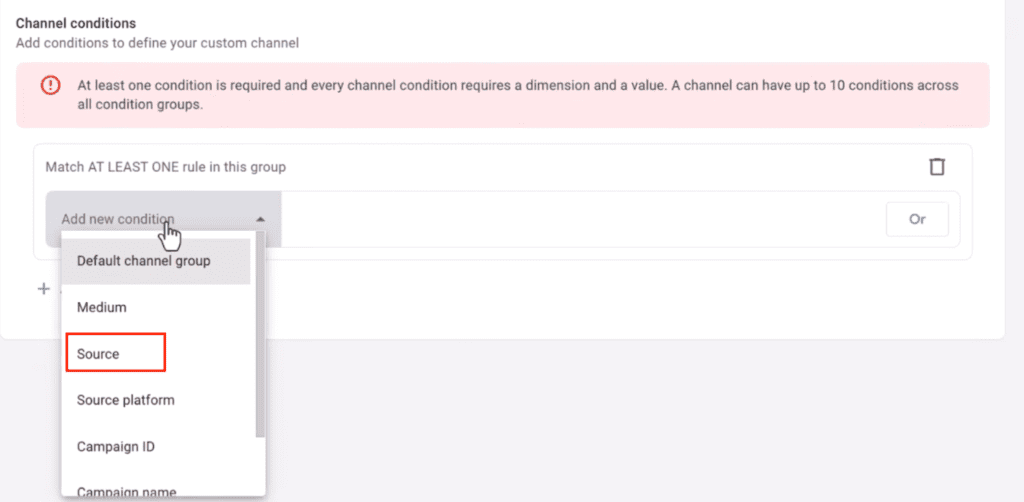
Select:
- Dimension: Source
- Condition: Matches regex (and then add the following string)
.*chatgpt\.com.*|.*perplexity.*|.*gemini\.google\.com.*|.*copilot\.microsoft\.com.*|.*openai\.com.*|.*claude\.ai.*|.*writesonic\.com.*|.*copy\.ai.*|.*deepseek\.com.*|.*huggingface\.co.*|.*bard\.google\.com.*
And save the channel.
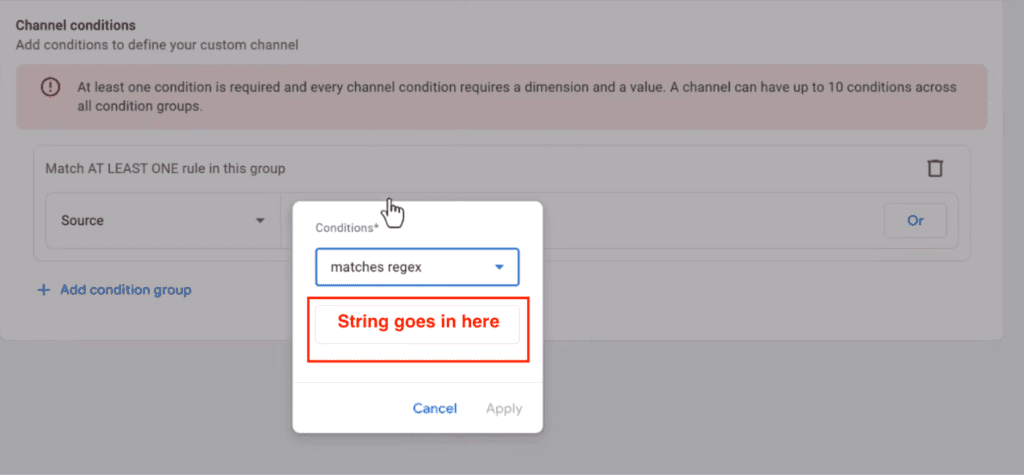
(keep adding more AI chatbots as you find out about them).
FYI: Regex, which is short for regular expression, is a pattern matcher, basically a smart search filter. Instead of you typing in every possible AI domain one by one, regex does the sweeping for you.
Re-order your channels (VERY IMPORTANT!)
When you save a new channel, GA4 places it at the bottom of the list and looks at it top-to-bottom when assigning traffic – meaning, it assigns traffic to the first convenient match it sees instead of looking for the dedicated channel you created .
So if “referral” sits ABOVE your new LLM channel, GA4 will simply toss all those chatbot clicks back into referral, and ignore your new LLM channel. So you MUST drag your new channel above “referral.” All the configuration work you did before goes to waste if you miss this critical step.
Now you’ve locked in a reusable segment. Any time you want to break out AI sessions in your analysis, it’s sitting there ready.
How to View AI Traffic in Standard Reports
Go to Reports → Acquisition → Traffic acquisition.
By default, GA4 shows data grouped by ‘Session default channel group’. That won’t include the channel you just created. Use the dropdown above the table and switch the primary dimension to: AI Traffic Channel Group
Now you’ll see your LLMs channel sitting alongside Organic Search, Paid Search, Direct, and the rest. The numbers you’ll see here are sessions that matched the regex rules you defined earlier and survived with referrer or UTM data intact.
This will give you a high-level overview of what AI traffic you are getting in comparison to other channels (paid, email, social).
How to Create a Dedicated AI Traffic Report (for deeper insight)
The standard Traffic Acquisition report works fine when you just want to check whether AI tools are sending traffic. But when you want to see exactly which LLMs are sending you traffic and how much, you’ll need to create a dedicated traffic acquisition report with some modifications.
To do that, open your Traffic Acquisition report. In the top right corner, click Customize report. This opens the report editor, where you can adjust the filters, dimensions, and metrics that appear in the table.
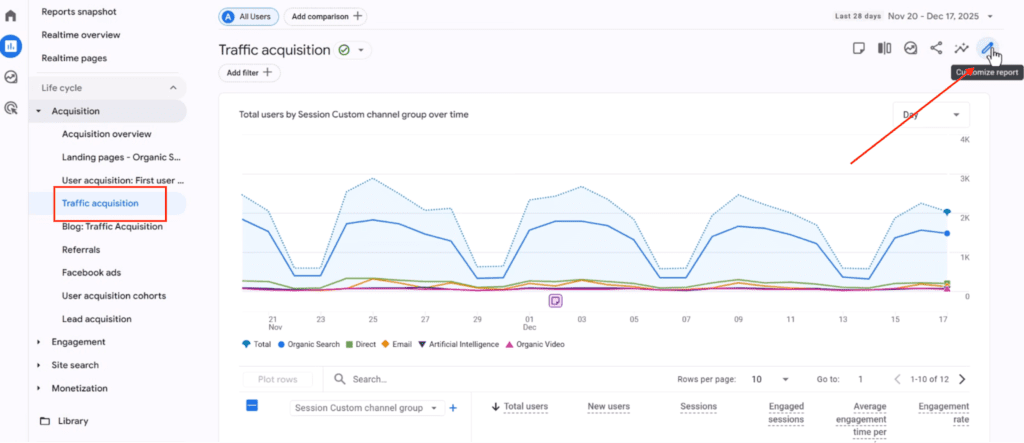
Add a filter that isolates the channel you created earlier:
Session AI Traffic channel group → exactly matches → LLMs -> Apply
Next, adjust the table so the main dimension is: Session source
This lets you see which platforms are actually driving the traffic like chatgpt.com, perplexity.ai, or gemini.google.com, which makes it much easier to understand where the sessions originate.
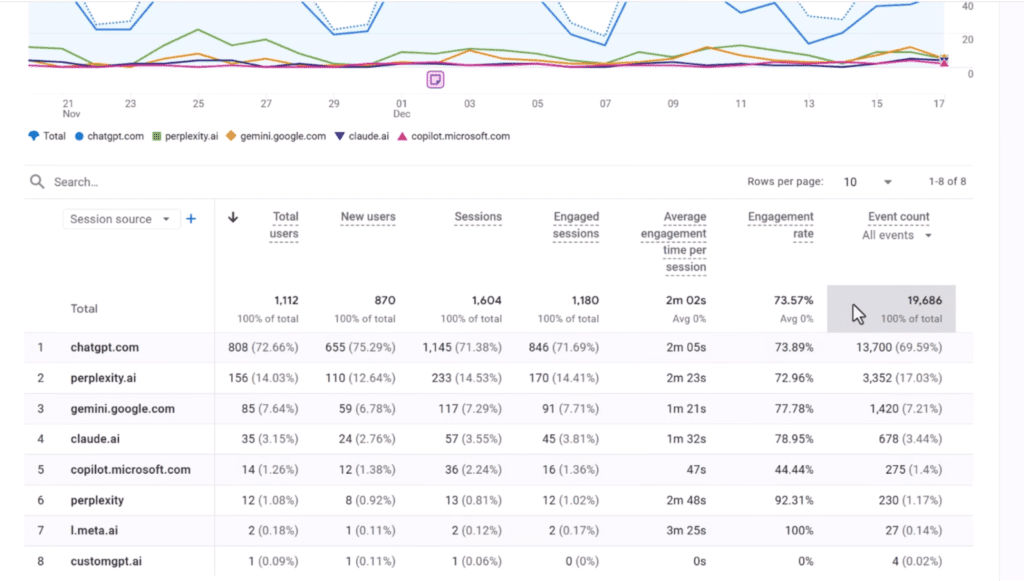
If that looks like all you needed to be able to see on a regular basis, click save → save as new report and name it AI Traffic.
To make it easy to access later, add the report to your navigation sidebar. Go to Library at the bottom of the Reports menu, open the Life cycle collection, and drag your new report under the Acquisition section.
Now you have a report that surfaces AI traffic immediately, without needing to rebuild filters each time you open GA4.
Final Thoughts
With this setup in place, you will start seeing visits from AI tools like ChatGPT and Google’s AI mode show up as their own channel. That makes it much easier to keep an eye on which specific LLMs the traffic is coming from, which pages those visitors land on, and whether that number grows over time.
It’s not a perfect system, but it gives you a clearer read on something that would otherwise stay buried in your reports.